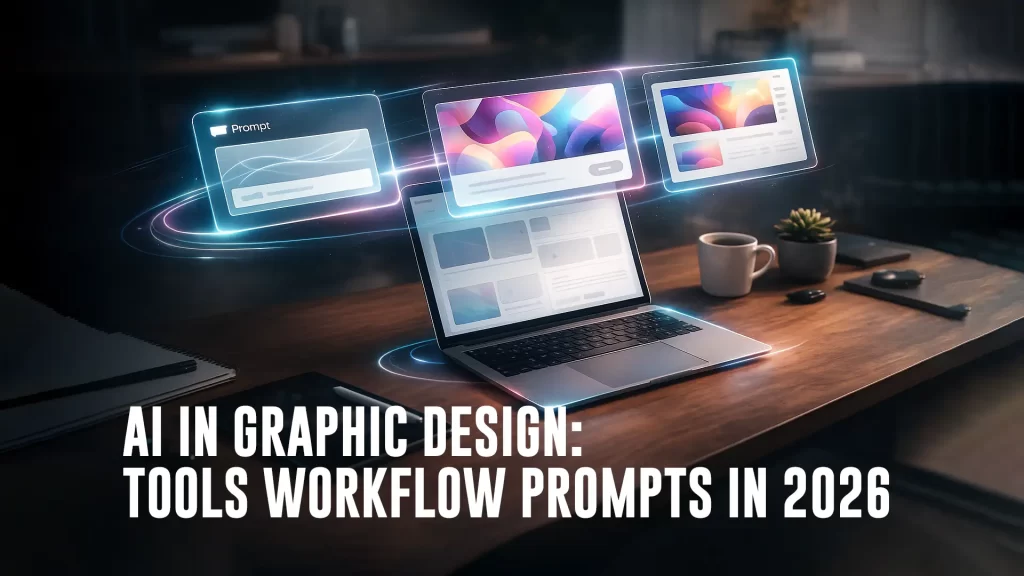
AI in graphic design means using AI tools to speed up ideas, image edits, and design variations—while the designer controls layout, typography, brand consistency, and final quality. In 2026, AI is most useful for social creatives, ads, thumbnails, and fast image fixes. The best workflow is: AI draft → human refinement → production-ready exports.
If you design for clients, social media, ads, websites, or brands… this guide will help you pick the right tools, follow a simple workflow, and use ready prompts that actually work.
What AI in graphic design really means
AI in graphic design simply means this: you use AI tools to speed up parts of your design work—ideas, visuals, edits, and variations—without handing over the “thinking” part of design.
So no, it’s not a magic button that replaces a designer.
It’s more like a super-fast assistant that gives you raw material. You still decide what looks right, what feels on-brand, and what will work for the audience.
Here’s the easiest way to understand it:
AI helps with “production speed.”
You handle “creative direction.”
What AI is good at (in real design work)
AI shines in the parts that usually consume time, not creativity.
It helps you:
- Generate ideas fast when the blank page is staring at you
- Create visual directions (minimal, premium, playful, bold) in minutes
- Edit images quickly (remove objects, clean backgrounds, expand images)
- Make multiple versions of one design for different sizes and platforms
- Support marketing work like ad creatives, thumbnails, banners, and social posts
In short, AI is great when the work is repetitive, heavy, or needs lots of variations.
What AI is not (and why this matters)
This is where many people get confused.
AI is not:
- a brand strategist
- a typography expert
- a layout perfectionist
- a cultural intelligence machine
- a creative director who understands your client’s business
Because design is not just “making something pretty.”
Design is making something clear, consistent, and convincing.
The best mindset: AI as a helper, not the hero
If you treat AI like the hero, your designs start looking generic.
If you treat AI like a helper, your output becomes faster and stronger.
A simple rule you can follow:
- Use AI to start faster
- Use your skills to finish better
The “AI + Designer” split (who does what)
Think of it like a clean division of roles:
AI can do:
- rough concepts and drafts
- quick visual exploration
- background generation and edits
- versioning and resizing support
You should do:
- final layout decisions
- typography choices
- spacing and hierarchy
- brand consistency
- the final “does this feel right?” judgment
That last line is important.
Because “feel” is what makes good design look premium—and AI still can’t reliably feel.
So what is AI in graphic design, in one sentence?
AI in graphic design is using AI to create and edit faster—while the designer controls the final look, clarity, and brand story.
Why AI matters in 2026 (what changed)
A few years back, “good design” was enough.
Now, clients want:
- good design plus speed
- good design plus more options
- good design plus platform-ready versions
Because marketing changed.
Today you might need:
- one hero banner for website
- 6 ad sizes for Google Display
- 5 creatives for Meta testing
- a Reel cover, a story version, a carousel version
- the same creative in Hindi + English (sometimes more)
This is why AI fits so well in graphic design.
Not because it makes you lazy.
Because it makes you fast without becoming messy.
If you use it properly.
Real use cases: where designers actually use AI
This is the most important section. Because theory is cheap. Real work is real.
Use case 1: Social media creatives (daily content)
If you post daily, you know the pain.
You need new visuals, again and again.
And you can’t redesign from zero every day.
AI helps here by:
- generating 10 design directions in minutes
- suggesting visual styles for the same topic
- helping you create variations (backgrounds, compositions, elements)
- creating supporting images for a carousel
What you still control: brand look, typography, layout, readability.
Use case 2: Ad creatives (performance testing)
Ads need testing. Testing needs options.
AI helps you create:
- multiple headlines (short, long, emotional, direct)
- multiple layouts (image-left vs text-left)
- multiple backgrounds (clean vs textured)
- multiple CTA styles (buy now vs learn more)
This is where AI becomes a real “money tool.”
Because more good variations = better chances of better CTR and conversion.
Use case 3: Image editing and fast fixes
This is where AI feels like magic.
You can do tasks like:
- remove unwanted objects
- clean messy backgrounds
- expand image edges for new size
- improve composition without reshooting
- create a better “space for text” area
These were time killers earlier.
Now they are quick.
Use case 4: Thumbnails, posters, and event creatives
For YouTube thumbnails, posters, banners, workshop creatives…
AI helps you:
- explore multiple styles (bold, minimal, premium, energetic)
- generate background visuals fast
- create concept mockups
Then you refine it into a real design.
Use case 5: Brand asset support (patterns, icons, elements)
AI is useful for supporting pieces:
- background patterns
- simple icon ideas
- texture concepts
- illustration direction drafts
But careful: don’t let AI decide your brand style.
Use it to generate options. You pick what fits.
Use case 6: Presentation design and pitch decks
This is a hidden goldmine.
AI helps you:
- generate visual metaphors (growth, trust, speed, scale)
- create supporting illustrations
- clean up images and make them consistent
- suggest slide headline variations
For busy clients, this saves hours.
Tools: what to use for what
You don’t need 20 tools. You need 3–5 tools that cover your workflow.
Here’s a practical split:
For image editing and quick fixes
Use AI inside your main design tool (example: Photoshop-like workflows).
Best for:
- remove/replace objects
- background cleanup
- expand images for banners
- product photo polishing
For fast marketing creatives and bulk versions
Use tools that are built for speed and resizing.
Best for:
- social posts
- ad sizes
- story/reel covers
- bulk adaptations
For UI / web design visuals
Use a UI tool plus AI-assisted image tweaks.
Best for:
- quick visual assets
- placeholder images
- UI illustrations and icons direction
For pure concept visuals
Use text-to-image tools.
Best for:
- moodboards
- style exploration
- “direction options” to show client
- backgrounds and creative concepts
One simple rule:
Create in AI. Finish in design software.
The workflow that actually works: AI draft → Designer finish
This is the workflow I’d recommend if you want quality + speed.
Step 1: Start with constraints (not prompts)
Before you use AI, lock these:
- brand colors (or vibe: premium / playful / minimal)
- audience (India metro? Tier-2? global?)
- platform (Instagram post, banner, website hero)
- goal (awareness, lead, sale, trust)
- message (one clear takeaway)
This makes AI output 10x better.
Step 2: Generate options fast (don’t get emotional)
Generate 10 options quickly.
Don’t fall in love with the first one.
The goal is not perfection.
The goal is raw material.
Step 3: Choose 2 winners (this is where taste matters)
Pick 2 options that are:
- readable
- on-brand
- clear message
- clean composition
Step 4: Refine like a designer (the real game)
Now do the human work:
- fix spacing
- fix hierarchy
- pick typography properly
- align elements
- balance empty space
- make it consistent with brand
This step is why you get paid.
Step 5: Versioning and exports
Now use speed:
- create 5 sizes
- create 3 headline variants
- export clean files
- name files properly (client will love you)
Prompt Pack: Copy-paste prompts that actually work
Before you copy-paste, one small rule that changes everything:
Always give AI 5 things in a prompt:
Goal + audience + format + brand style + must-have / must-avoid.
That’s it. Your outputs will instantly look more “designer-made.”
Below are detailed prompts you can use for ChatGPT image tools, Midjourney, Leonardo, Firefly, and most AI design assistants. (Just adjust aspect ratio and tool-specific tags.)
Prompt 1: Social Ad Creative Layout (High-Conversion, Clean)
Use when: you need Meta ads, Instagram posts, promo creatives.
Prompt:
Create a modern, high-conversion social ad design for [Brand/Business Name].
Format: [1:1 / 4:5 / 9:16]
Platform: [Instagram feed / Story / Facebook ad]
Goal: [leads / sales / app installs / awareness]
Audience: [example: Indian metro professionals 25–40 / students 18–24]
Offer: [ex: 20% off, free consultation, limited seats]
Primary message: [one sentence only]
CTA text: [Book Now / Learn More / Get Quote]
Brand style:
- Look & feel: [premium / minimal / bold / youthful / luxury]
- Colors: [hex codes or “use brand palette: …”]
- Typography vibe: [modern sans / elegant serif / bold condensed]
- Mood: [energetic / calm / trust-building]
Layout requirements:
- Strong hierarchy: big headline → short supporting line → CTA
- Keep whitespace, avoid clutter
- Leave logo space at top-right
- Add a subtle shape or gradient to guide the eye to CTA
- Keep text safe margins for mobile UI overlays
Do NOT:
- Do not use watermarks
- Do not use too many icons
- Avoid messy backgrounds that reduce readability
Output: Provide 3 layout variations (A/B/C) with different composition ideas.
Prompt 2: Product Visual (Studio Premium Look)
Use when: product mockups, ecom banners, hero images.
Prompt:
Generate a premium studio product visual for [Product name/type].
Composition:
- Product in focus, centered slightly right
- Empty space on left for text overlay
- Subtle shadow, realistic reflections (if needed)
Lighting:
- Softbox lighting, gentle highlight edges
- Clean, premium look (not harsh)
Background:
- Color: [pastel / solid / gradient] in [exact color or hex]
- Minimal texture, no noise
Quality notes:
- Realistic materials, sharp details
- No extra random objects
- No text, no watermark, no logo unless provided
Output:
Provide 3 variations:
- clean minimal
- premium gradient background
- slightly dramatic light with deeper shadow
Prompt 3: Brand Moodboard Generator (Fast Direction Clarity)
Use when: new client, rebrand, campaign look & feel.
Prompt:
Create a brand moodboard direction for [Brand].
Include:
- 3 style keywords (example: modern, confident, clean)
- Suggested color palette with hex codes
- Typography pairing (headline + body font style)
- Imagery direction (photo style: lighting, composition, subjects)
- Graphic elements (shapes, line styles, patterns)
- Do’s and Don’ts for consistency
Brand context:
- Industry: [industry]
- Audience: [audience]
- Positioning: [premium/value/eco/luxury]
- Competitors: [optional]
Output it as short paragraphs + bullets, not only lists.
Prompt 4: Logo Concept Starter (Not Final Logo, Just Directions)
Use when: you want directions, not finished logos.
Prompt:
Suggest 8 logo direction ideas for [Brand name].
Brand details:
- What it does: [one sentence]
- Brand personality: [3 adjectives]
- Target audience: [who]
- Avoid: [symbols to avoid, clichés]
For each direction:
- Concept idea (1–2 lines)
- Style type: wordmark / monogram / icon+wordmark
- Shape language: sharp / rounded / geometric / organic
- Why it fits the brand
Important: Keep concepts original, avoid generic icons.
Prompt 5: Thumbnail Prompt (High CTR, Clean Typography)
Use when: YouTube thumbnails, course posters, webinar creatives.
Prompt:
Create a high-CTR thumbnail concept for [Topic/Video title].
Format: 16:9
Audience: [example: Indian marketers / students]
Tone: [bold, energetic, premium]
Design requirements:
- 2–4 word headline max (very bold)
- Strong contrast background
- Clear focal point (single subject)
- Add 1 visual hook element (arrow, circle highlight, glow) but keep it minimal
- Keep safe margins, avoid tiny text
Output:
Give 5 headline options + 3 layout options.
Prompt 6: Carousel Structure Prompt (Instagram / LinkedIn)
Use when: educational carousel posts.
Prompt:
Create a 10-slide carousel structure on [Topic] for [platform: LinkedIn/Instagram].
Audience: [who]
Tone: simple, direct, practical
Slide plan:
- Slide 1: strong hook headline
- Slides 2–4: the problem and why it matters
- Slides 5–8: the solution steps (with examples)
- Slide 9: quick checklist
- Slide 10: CTA (save/share/comment)
Output:
- Slide-by-slide copy (short, punchy)
- Visual suggestion per slide (icons, diagrams, layouts)
Prompt 7: Banner System Prompt (Website + Ads, Same Look)
Use when: you need consistency across multiple formats.
Prompt:
Design a banner system for [Brand/Campaign] that works across:
- Website hero (1920×800)
- Google display (300×250, 728×90, 160×600)
- Instagram (1080×1350, 1080×1920)
Brand rules:
- Colors: [hex]
- Typography vibe: [modern, bold]
- Visual style: [photo/product/abstract]
Output:
- A “master layout rule” (consistent grid)
- Placement rules for headline, CTA, logo
- Text length guidelines per size
- 3 visual system variations (background styles)
What AI can’t do well (so you don’t get trapped)
This part saves your reputation.
AI can fail when:
- typography looks “random”
- spacing feels off
- designs look generic
- cultural context is wrong
- the concept feels copied or common
So your rule should be:
AI can touch production. You must own the concept.
When you own the concept, the output becomes yours.
When you don’t, it looks like everyone else.
Client work rules: copyright + ethics (simple words)
Let’s keep this practical. When money and clients are involved, you need “safe habits,” not guesswork.
1) Don’t promise exclusivity on AI visuals
Many AI tools clearly say you may not get exclusive rights to AI output. That means someone else can generate something similar. So don’t sell AI images as “exclusive art.” (Canva)
What to do instead:
Sell the final design as your work: your layout, typography, brand system, edits, composition, and campaign thinking.
2) Understand the “human authorship” idea
In the U.S., copyright protection depends on human authorship. The U.S. Copyright Office guidance and reports repeatedly explain that purely AI-generated output (with no meaningful human creative control) may not qualify for copyright.
Simple client-safe rule:
Use AI for drafts and elements, then add real human creativity: editing, arranging, compositing, and designing the final piece.
3) Always review before you publish (no blind posting)
AI can hallucinate faces, create wrong text, or generate weird details. Canva’s AI terms also remind users the output isn’t verified and should be reviewed.
Checklist before delivering:
- spelling + numbers (offers, dates, pricing)
- logos and brand colors
- hands/faces (common AI mistakes)
- background objects (random nonsense)
- any claim that sounds “too strong”
4) Don’t generate brands you don’t own
Avoid prompts like: “make it like Nike / Apple / Disney / Marvel” or using competitor logos. It’s risky for client work and looks unprofessional.
5) Be clear about AI usage (when it matters)
You don’t need to shout it everywhere. But for sensitive industries, political content, or if the client asks—be transparent.
Also, some platforms and workflows support “AI transparency” metadata like Content Credentials (Adobe talks about this as a “nutrition label”).
6) Keep your proof of work
For serious client projects, keep:
- the brief
- prompt versions
- your edits (PSD/Figma files)
- what you changed manually
If anything is questioned later, you can show your human contribution.
Future-proof tips for designers (what will still matter in 2030)
AI will keep getting better. That’s not the scary part. The scary part is becoming a “template operator.”
Here’s how to stay ahead:
1) Get deadly good at the basics (AI can’t replace taste)
- typography hierarchy (headline → subhead → body)
- spacing and alignment
- contrast and readability
- brand consistency across formats
If your basics are strong, AI becomes your speed booster.
2) Build systems, not just single designs
Clients don’t pay for one poster. They pay for consistency.
Start thinking in design systems:
- reusable layout grids
- type scales
- button styles
- icon rules
- color usage rules
3) Become a “creative tester” (especially for digital)
The new superpower is: make 10 good versions, test fast, learn fast.
AI helps you produce variations. You decide what to test and why.
4) Learn art direction language
Instead of “make it nice,” learn to brief clearly:
- mood: premium, calm, youthful, bold
- lighting: soft studio, golden hour, neon edge
- composition: centered, rule of thirds, negative space
- texture: clean, grainy, glossy, paper feel
That’s how you control AI output like a pro.
5) Position yourself correctly
The winning positioning is not “AI designer.”
It’s: “Brand-first designer who uses AI to deliver faster and better.”
FAQs
Is AI replacing graphic designers?
AI is replacing repetitive design tasks. Not taste, concept clarity, and brand thinking. Designers who learn AI workflows will move faster and win more work.
Which AI tool is best for graphic design?
There isn’t one “best.” Most designers use a mix: one tool for image edits, one for fast marketing creatives, and one for concept exploration—then finish in pro design software.
Can I use AI images for client projects?
Usually yes, but you must follow the tool’s terms—and you may not have exclusive rights to the output. For safer client work, use AI as a draft and add strong human editing and design decisions.
Can AI-generated work be copyrighted?
In the U.S., purely AI-generated work without meaningful human authorship generally won’t qualify for copyright. Works with sufficient human creative contribution can.
How do I keep my designs original when using AI?
Don’t use AI as the final output. Use it as raw material. Your originality comes from your concept, your layout, your typography, your edits, and your brand consistency.
Conclusion
AI in graphic design is not a shortcut to “good design.” It’s a shortcut to more attempts—and that’s powerful, because great design often comes after version 7, not version 1.
Use AI to start faster.
Use your design skills to finish stronger.